Fiscal Devices
Overview
In Belgium (SCE 2.0), fiscalization is handled via a Fiscal Data Module (FDM).
The FDM is responsible for:
- Receiving transaction data from EFR
- Generating fiscal control data
- Ensuring secure communication with FPS Finance
- Guaranteeing data integrity and auditability
The FDM operates within a distributed system together with:
- the POS system
- the EFR
- and the FPS Finance cloud services
FDM Configuration
General Requirements
- The EFR requires an exclusive FDM per cash register
- Each POS register must be paired with its own FDM
- An FDM must not be shared across multiple registers
If the FDM is not reachable, EFR will block fiscal receipt creation.
Connection Methods
The EFR can communicate with the FDM in two ways.
| Method | Endpoint | Reachability | Authentication | Use when |
|---|---|---|---|---|
| Local | http://[serial].local or http://[IPv4 or IPv6] | Local network (Ethernet / Wi-Fi) | Shared secret | EFR and FDM are on the same LAN (default, recommended) |
| Cloud | https://cloud.zwartedoos.be/fdm/[serial] | Internet (Zwartedoos cloud) | Bearer token | Cloud-hosted or remote POS, not on the same network as the FDM |
Local Connection (Same Network) — uses shared secret
The FDM is reached directly over the local network (Ethernet / Wi-Fi). This is the default and recommended option when the EFR and FDM share a LAN.
Endpoints
The FDM can be reached using one of the following GraphQL endpoints:
- Hostname:
http://[serial].local(e.g.http://bmc08000048.local) - IP address (recommended):
http://[IPv4 or IPv6]
Use a fixed IP address instead of the hostname to avoid DNS resolution delays and improve communication performance.
Authentication — Shared Secret
The local method authenticates with a shared secret. To retrieve it:
-
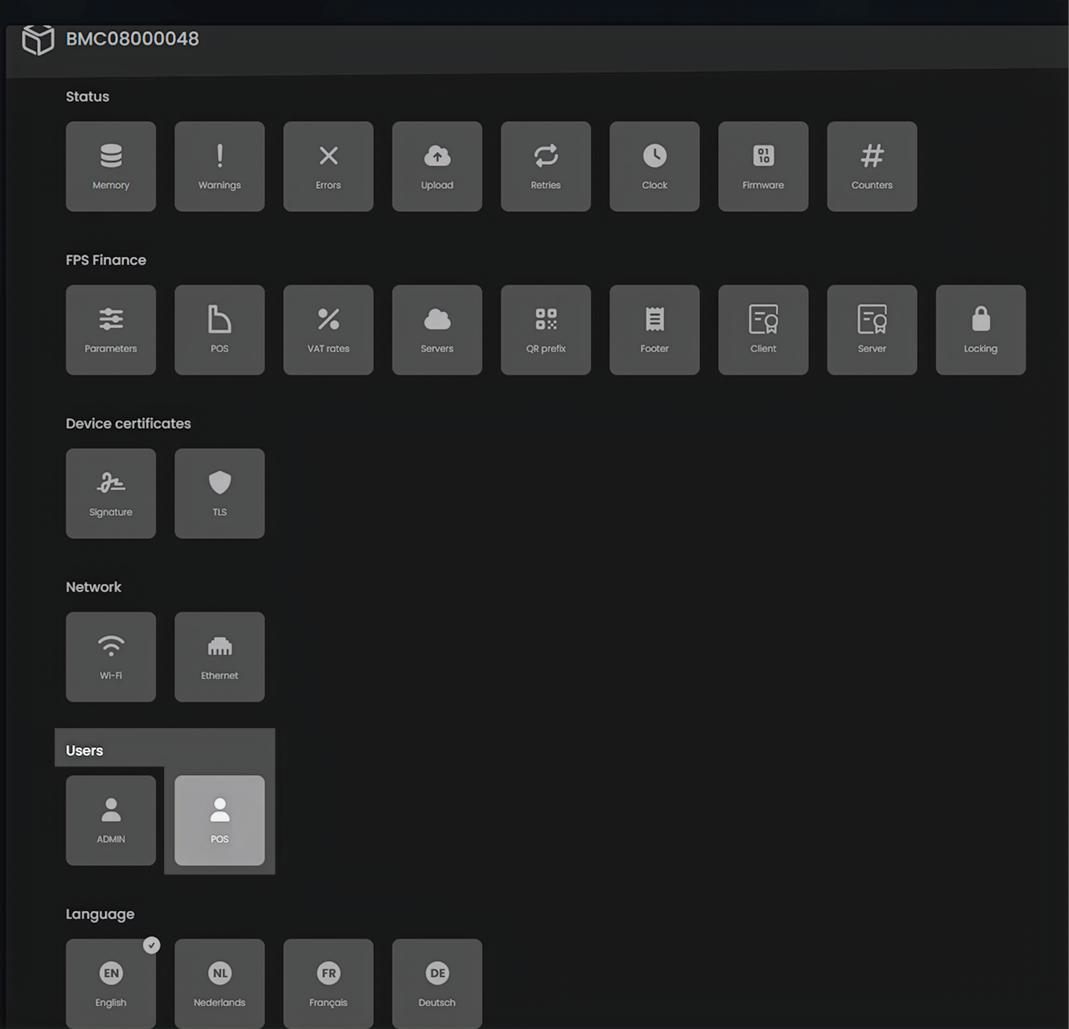
Open the FDM configuration interface and navigate to "Users"
-
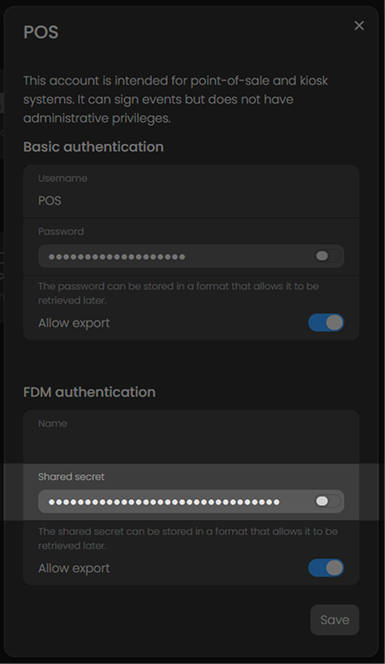
Click on "POS" to view the shared secret
EFR Configuration
The FDM must be configured as the signature device in the EFR profile.
| Parameter | Value |
|---|---|
host | The FDM device URL (e.g. http://bmc08000048.local) |
secret | The FDM shared secret |
Example Sign_Cfg:
host=http://bmc08000048.local
secret=ab********************XY
Environment variable example:
EFSTA_EFR_PROFILE_CFG__DOT__001_1__DOT__Sign_Cfg="host=http://bmc08000048.local secret=ab********************XY"
Cloud Connection (Remote / Cloud-hosted POS) — uses bearer token
The Zwartedoos Cloud URL lets the EFR reach the FDM over the internet through Zwartedoos' cloud instead of the local network. This enables cloud-hosted POS systems and any deployment where the POS/EFR is not on the same local network as the FDM.
Endpoint — Zwartedoos Cloud URL
Format:  https://cloud.zwartedoos.be/fdm/[SERIAL]
Example: https://cloud.zwartedoos.be/fdm/BMC08000048
- The scheme must be HTTPS
[SERIAL]is the FDM serial number (the "serienummer") — the same value used for the local.localhostname.
The serial number in the URL must match the exact case of your FDM serial number.
Authentication — Bearer Token
The cloud endpoint authenticates with a bearer token, which is distinct from the shared secret used by the local method. The bearer token could be retrieved from Zwartedoos after certification process.
For production, bearer tokens are securely managed by Zwartedoos. To obtain the official production bearer token:
- Certification — The POS system/software has successfully completed the formal Certification process from FPS Finance.
- Token Creation — Once certified, Zwartedoos generates the dedicated bearer token to be used.
For the test devices the bearer token shall be requested from Zwartedoos directly.
EFR Configuration
Configure the FDM as the signature device in the EFR profile. The EFR automatically uses bearer-token authentication when host points at cloud.zwartedoos.be.
| Parameter | Value |
|---|---|
host | The full Zwartedoos Cloud URL (e.g. https://cloud.zwartedoos.be/fdm/BMC08000048) |
secret | The bearer token issued by Zwartedoos |
Example Sign_Cfg:
host=https://cloud.zwartedoos.be/fdm/BMC08000048
secret=<bearer token>
Environment variable example:
EFSTA_EFR_PROFILE_CFG__DOT__001_1__DOT__Sign_Cfg="host=https://cloud.zwartedoos.be/fdm/BMC08000048 secret=<bearer token>"
The shared secret and the bearer token must be handled securely and only shared with authorized personnel.
Zwartedoos FDM Behavior
- Each FDM is configured by FPS Finance for specific POS serial number(s)
- This configuration is transmitted automatically to the FDM
- The FDM will only accept transactions from configured POS serials
If the POS serial does not match the configuration, transactions will be rejected by the FDM.
Virtual FDM (SDK / Testing)
For development and testing, a virtual FDM can be used. Virtual FDMs are not restricted to specific POS serial numbers and are not valid for production use.
Access to the Zwartedoos SDK for the second-generation FDM is invitation-based. You will be asked to enter an invitation code, or alternatively your email address to receive one. If you have not received an invitation, please contact your partner manager.
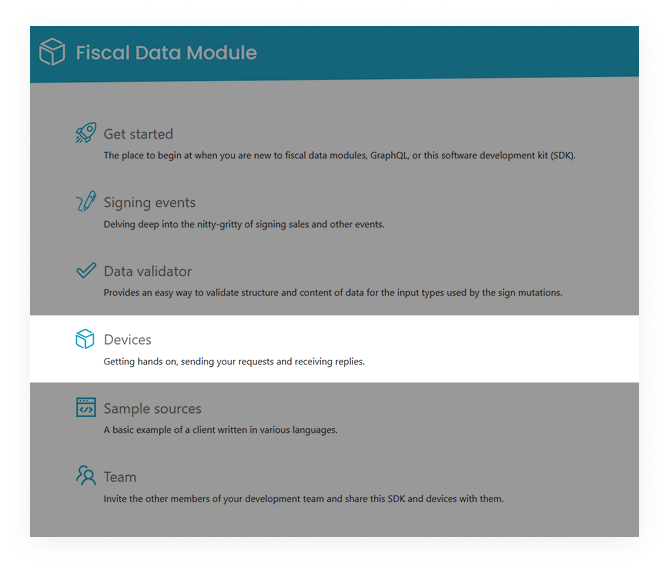
Once you have access, retrieve connection details from Zwartedoos Devices:
- In your FDM, first navigate to devices
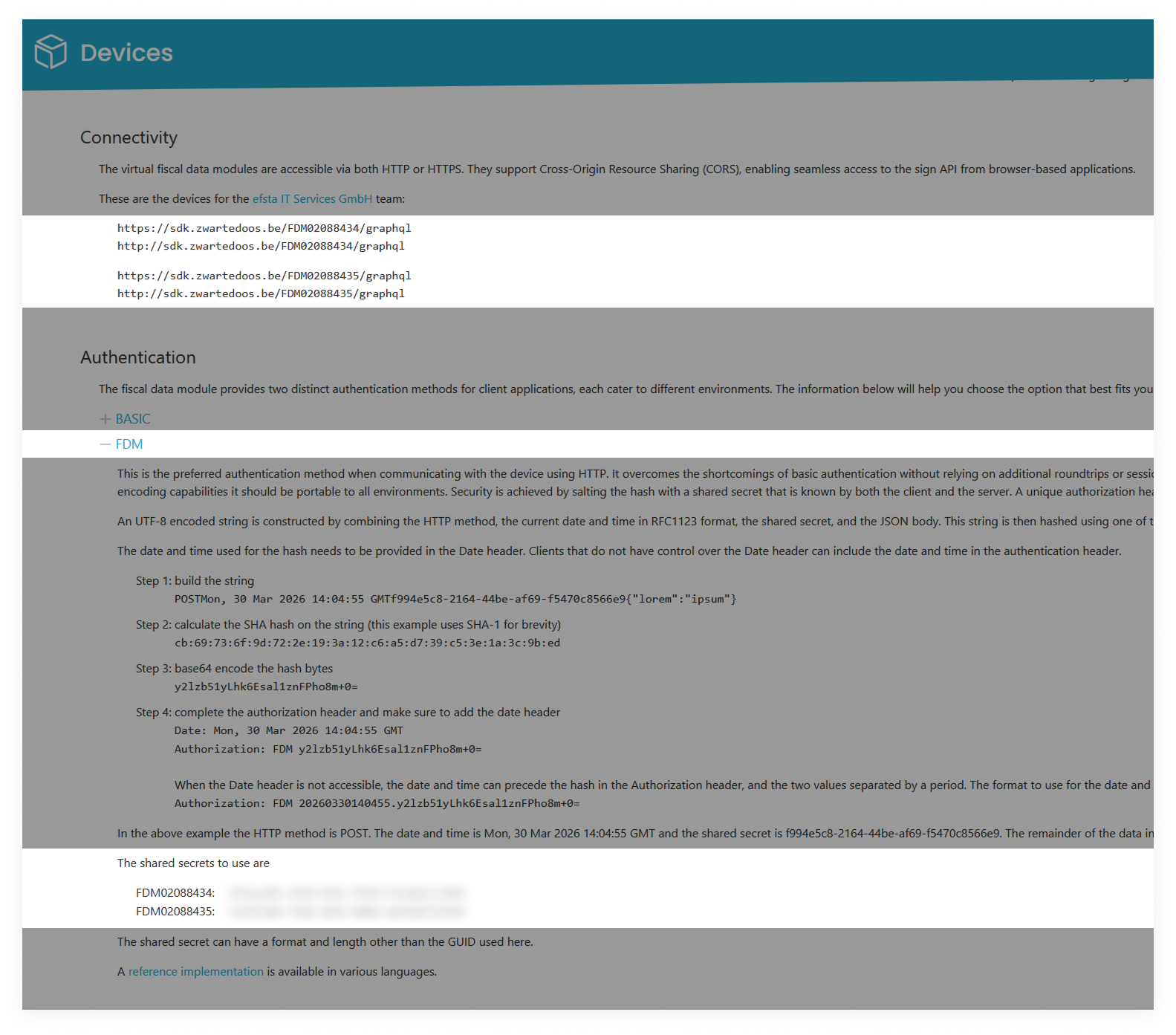
- Under "Authentication", expand the "FDM" section
- You will find the shared secrets listed here
- The shared secret has to correspond with the used device number in the "Connectivity" section at the top of the page
- The shared secret has to correspond with the used device number in the "Connectivity" section at the top of the page
Network & Firewall
Ensure outbound HTTPS (TCP 443) connectivity for:
- FDM ↔ FPS Finance communication
- Vendor services (if applicable)
SCE 2.0 is an online-first system. Loss of connectivity may prevent fiscal operations.
FDM Activation (Commissioning)
Overview
Activation is the process of making the FDM operational for fiscal use. It includes:
- Configuration in EFR
- Registration in the FPS Finance system
- Commissioning of the device
Registration & Linking
Before activation, ensure the installation (SCE) is registered with FPS Finance and the following are linked:
- Enterprise (VAT number)
- Establishment unit
- POS system
- FDM device
Commissioning Process
During commissioning, the FDM establishes a secure connection with FPS Finance, authenticates itself, receives its certificates and configuration, and becomes active for fiscal operation.
For the official commissioning process, see GKS 2.0 - geregistreerdkassasysteem.be.
Activation is a regulated compliance process, not just a technical configuration.
Validation
After activation, verify:
- EFR can reach the FDM
- Transactions are successfully processed
- No authentication or signature errors occur
- Receipts contain fiscal control data
- Data is transmitted to FPS Finance
FDM Operation
During normal operation, EFR sends transaction data to the FDM. The FDM then:
- Validates the POS identity
- Generates fiscal control data
- Stores transaction information
- Transmits data to FPS Finance
If the FDM does not return valid fiscal data, EFR must reject the transaction.
FDM Deactivation
When Deactivation Is Required
Deactivation is required when:
- The FDM is replaced
- The POS installation changes
- The business closes
- The device must be unlinked
Technical Preparation
Before deactivation:
- Stop fiscal operations and ensure no open transactions remain
- Perform a final daily closing (Z-report), if applicable
- Ensure all buffered data has been transmitted
Deregistration
- Unlink the FDM from the installation in the FPS Finance system
- Update device lifecycle status
Deactivation must be handled as a compliance process, not by simply disconnecting the device.
Data Retention
Fiscal data must remain securely stored and available for audits. Deactivation must not result in data loss or break the audit trail.
Lifecycle Summary
| Phase | Description |
|---|---|
| Configuration | Set up EFR ↔ FDM communication |
| Activation | Register and commission the FDM |
| Operation | Process and transmit transactions |
| Deactivation | Synchronize and deregister |